
こんにちは、SCSKの伊藤です。
以前、Linux版でLKCLIについてご説明させていただきましたが、Windows版でもバージョン10.1でLKCLIが実装されました。
本記事では、Windows版のLKCLIを使った構築例をご紹介します。
Linux版LKCLIの過去記事はこちら

参考情報
下記のリンク先に、コマンド一覧が記載されています。
■LifeKeeper Command Line Interface (LKCLI)

resourceコマンドのオプションは、下記のリンク先のARK毎のLKCLIサブコマンドを参考にしてください。
■ARK毎のLKCLIサブコマンド
LifeKeeper for WindowsのLKCLIを使ってみた。
さっそく、LifeKeeper for WindowsのLKCLIを使用していきます。
コマンドはすべてアクティブサーバから実行するものとします。
また、LifeKeeper自体はインストールが完了している状態から開始します。
実施環境は以下の通り。
■環境情報
| ホスト名 | アクティブサーバ = WIN2019S01 スタンバイサーバ = WIN2019S02 |
| OS | Windows Server 2019 |
| 製品 | LifeKeeper for Windows v10.1 |
■コミュニケーションパス
| 優先度1 | 192.168.11.71/192.168.11.72 |
| 優先度2 | 192.168.10.71/192.168.10.72 |
■作成するリソース階層
| IIS | IISリソース |
| Vol.E | DataKeeperボリュームリソース |
| ip-192.168.10.70 | 仮想IPリソース |
1.コマンドプロンプトを起動します。
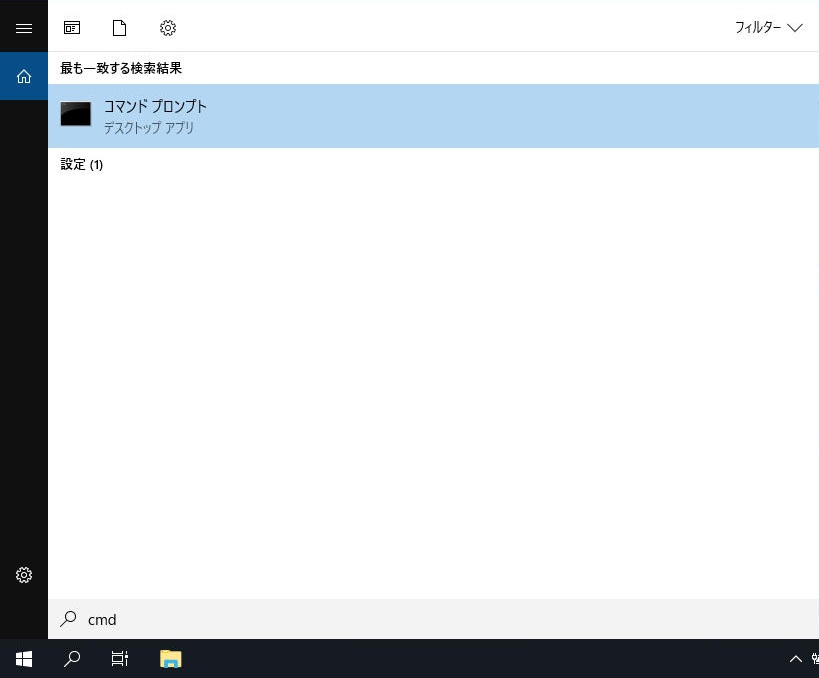
2.カレントフォルダを「C:\LK\Bin」に移動します。
| C:\Users\Administrator>cd C:\LK\Bin C:\LK\Bin> |
3.LKCLI用の認証情報を登録します。
| C:\LK\Bin>lkcli profile add-key --host=”WIN2019S01″ --username=”administrator” --password=”p@ssword1234″ --role=”admin” --description=”LKCLI key for server1″ --expiration-days=”365″ API key lk_3e46f30b361914f0a705c3a7 created and stored in credentials.yml under profile ‘default’ for administrator@WIN2019S01 (expires: 2027-08-24T02:53:07Z). C:\LK\Bin>lkcli profile add-key --host=”WIN2019S02″ --username=”administrator” --password=”p@ssword1234″ --role=”admin” --description=”LKCLI key for server2″ --expiration-days=”365″ API key lk_1dcf1a8ce5e54c02436bfeb4 created and stored in credentials.yml under profile ‘default’ for administrator@WIN2019S02 (expires: 2027-08-24T02:53:40Z). |
4.コミュニケーションパス1を作成します。
| C:\LK\Bin>lkcli communication-path create --host=”WIN2019S01″ --remote-sys=”WIN2019S02″ --local-ip=”192.168.11.71″ --remote-ip=”192.168.11.72″ --priority=”1″ --port=”1500″ Successfully created communication path to ‘WIN2019S02’ using local IP ‘192.168.11.71’ and remote IP ‘192.168.11.72’. C:\LK\Bin>lkcli communication-path create --host=”WIN2019S02″ --remote-sys=”WIN2019S01″ --local-ip=”192.168.11.72″ --remote-ip=”192.168.11.71″ --priority=”1″ --port=”1500″ Successfully created communication path to ‘WIN2019S01’ using local IP ‘192.168.11.72’ and remote IP ‘192.168.11.71’. |
5.コミュニケーションパス2の作成します。
| C:\LK\Bin>lkcli communication-path create --host=”WIN2019S01″ --remote-sys=”WIN2019S02″ --local-ip=”192.168.10.71″ --remote-ip=”192.168.10.72″ --priority=”2″ --port=”1510″ Successfully created communication path to ‘WIN2019S02’ using local IP ‘192.168.10.71’ and remote IP ‘192.168.10.72’. C:\LK\Bin>lkcli communication-path create --host=”WIN2019S02″ --remote-sys=”WIN2019S01″ --local-ip=”192.168.10.72″ --remote-ip=”192.168.10.71″ --priority=”2″ --port=”1510″ Successfully created communication path to ‘WIN2019S01’ using local IP ‘192.168.10.72’ and remote IP ‘192.168.10.71’. |
6.仮想IPリソースを作成します。
| C:\LK\Bin>lkcli resource comm/ip create --host=”WIN2019S01″ --ip-type=”virtual_ip” --ip-address=”192.168.10.70″ --interface=”イーサネット” --netmask=”255.255.255.0″ --tag=”ip-192.168.10.70″ Bringing LifeKeeper IP resource “ip-192.168.10.70” in-service. Process: IPAPP(5620) *INFO* (No. 6013) Restore IP Address 192.168.10.70 Start Process: IPAPP(6028) *INFO* (No. 6001) Restore IP Address 192.168.10.70 End: Successful |
7.仮想IPリソースを拡張します。
| C:\LK\Bin>lkcli resource comm/ip extend --host=”WIN2019S01″ --primary-sys=”WIN2019S01″ --primary-tag=”ip-192.168.10.70″ --standby-sys=”WIN2019S02″ --interface=”イーサネット” Hierarchy Extend Manager active on WIN2019S02 (LKROOT=C:\LK) Roots=ip-192.168.10.70 LifeKeeper Admin Lock Acquired for WIN2019S02 Extending resource ip-192.168.10.70 to WIN2019S02 (ReturnCode=0) Creating Equivalencies Equivalency WIN2019S01:ip-192.168.10.70:1 to WIN2019S02:ip-192.168.10.70:10 (ReturnCode=0) Creating Dependencies Setting Switchback Type for Hierarchy LifeKeeper Admin Lock Released for WIN2019S02 Hierarchy extend operation completed. |
8.DataKeeperボリュームリソースを作成します。
| C:\LK\Bin>lkcli resource filesys/volume create --host=”WIN2019S01″ --volume=”E:” --tag=”Vol.E” Creating volume resource on Machine “WIN2019S01” with Tag “Vol.E”. Volume E: successfully created on “WIN2019S01”. |
9.DataKeeperボリュームリソースを拡張します。
| C:\LK\Bin>lkcli resource filesys/volume extend --host=”WIN2019S01″ --primary-sys=”WIN2019S01″ --standby-sys=”WIN2019S02″ --primary-tag=”Vol.E” --volume-type=”Create Mirror” --network-endpoints=”192.168.11.72/192.168.11.71″ --sync-mode=”Synchronous” Creating mirror 192.168.11.71 volume E: to 192.168.11.72 (Synchronous). Mirror created successfully. Refreshing mirror state on 192.168.11.72. Mirror setup complete. Hierarchy Extend Manager active on WIN2019S02 (LKROOT=C:\LK) Roots=Vol.E LifeKeeper Admin Lock Acquired for WIN2019S02 Extending resource Vol.E to WIN2019S02 (ReturnCode=0) Creating Equivalencies Equivalency WIN2019S01:Vol.E:1 to WIN2019S02:Vol.E:10 (ReturnCode=0) Creating Dependencies Setting Switchback Type for Hierarchy LifeKeeper Admin Lock Released for WIN2019S02 Hierarchy extend operation completed. |
10.リソース階層を作成
| C:\LK\Bin>lkcli dependency create --host=”WIN2019S01″ --parent=”Vol.E” --child=”ip-192.168.10.70″ Successfully created dependency between resources ‘Vol.E’ and ‘ip-192.168.10.70’. |
11.各リソースが起動中のアクティブサーバでIISのWebサイトを追加します。
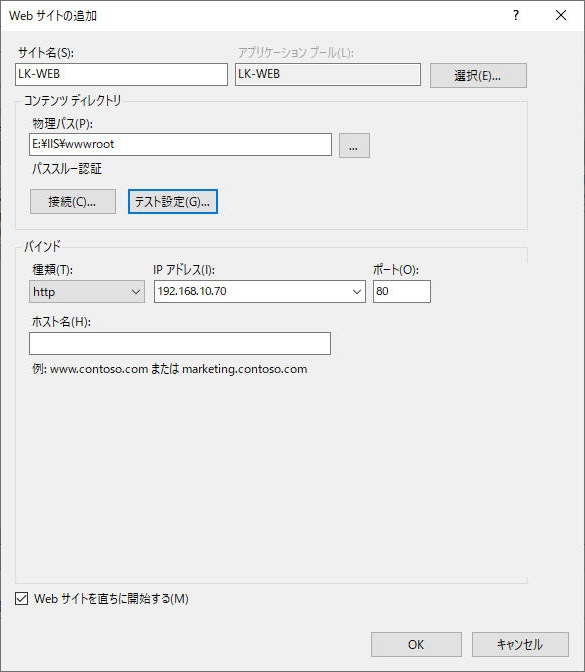
12.アクティブサーバからスタンバイサーバにリソースをスイッチオーバーします。
| C:\LK\Bin>lkcli resource restore --host=”WIN2019S02″ --tag=”Vol.E” LifeKeeper: Put resource “Vol.E” in-service at: Mon Aug 24 15:16:20 JST 2026 Process: perform_action.exe(2980) *INFO* (No. 348) LRACI 1 attempting remote remove of resource “ip-192.168.10.70” on machine “WIN2019S01” Process: perform_action.exe(2980) *INFO* (No. 351) Process: IPAPP(4744) *INFO* (No. 6101) Remove IP Address 192.168.10.70 End: Successful LRACI 1 remote remove of resource “ip-192.168.10.70” on machine “WIN2019S01” successful Process: IPAPP(5824) *INFO* (No. 6001) Restore IP Address 192.168.10.70 End: Successful Process: perform_action.exe(2980) *INFO* (No. 348) LRACI 1 attempting remote remove of resource “Vol.E” on machine “WIN2019S01” Process: perform_action.exe(2980) *INFO* (No. 351) LRACI 1 remote remove of resource “Vol.E” on machine “WIN2019S01” successful Status = 0 volume E on WIN2019S02 marked for LifeKeeper protection LifeKeeper: Put “Vol.E” in-service successful at: Mon Aug 24 15:16:53 JST 2026 |
13.スタンバイサーバでリソースが起動したことを確認します。
| C:\LK\Bin>lkcli resource list --host=”WIN2019S02″ ~省略~ “state”: “ISP“, “state_change_reason”: “restore action has succeeded”, “switchback”: “INTELLIGENT”, “sys”: “WIN2019S02”, “tag”: “Vol.E” ~省略~ |
14.各リソースが起動中のスタンバイサーバでIISのWebサイトを追加します。
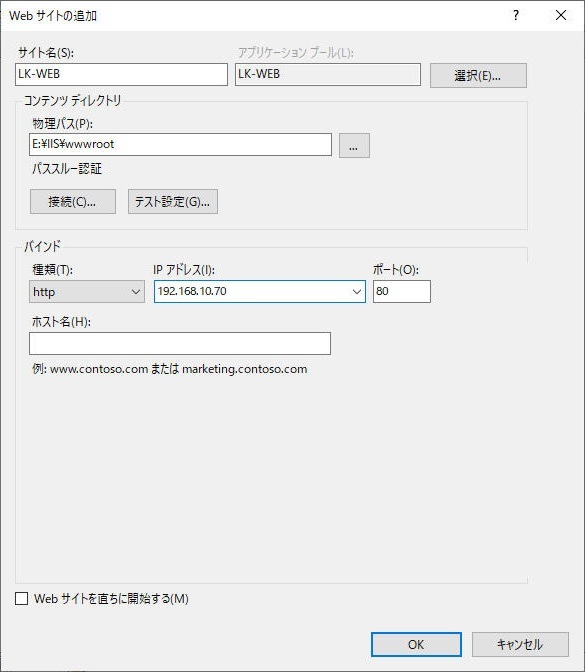
15.WIN2019S02からWIN2019S01にリソースをスイッチオーバーします。
| C:\LK\Bin>lkcli resource restore --host=”WIN2019S01″ --tag=”Vol.E” LifeKeeper: Put resource “Vol.E” in-service at: Mon Aug 24 15:21:59 JST 2026 Process: perform_action.exe(1856) *INFO* (No. 348) LRACI 1 attempting remote remove of resource “ip-192.168.10.70” on machine “WIN2019S02” Process: perform_action.exe(1856) *INFO* (No. 351) Process: IPAPP(2084) *INFO* (No. 6101) Remove IP Address 192.168.10.70 End: Successful LRACI 1 remote remove of resource “ip-192.168.10.70” on machine “WIN2019S02” successful Process: IPAPP(5144) *INFO* (No. 6001) Restore IP Address 192.168.10.70 End: Successful Process: perform_action.exe(1856) *INFO* (No. 348) LRACI 1 attempting remote remove of resource “Vol.E” on machine “WIN2019S02” Process: perform_action.exe(1856) *INFO* (No. 351) LRACI 1 remote remove of resource “Vol.E” on machine “WIN2019S02” successful Status = 0 volume E on WIN2019S01 marked for LifeKeeper protection LifeKeeper: Put “Vol.E” in-service successful at: Mon Aug 24 15:22:32 JST 2026 |
16.アクティブサーバでリソースが起動したことを確認します。
| C:\LK\Bin>lkcli resource list --host=”WIN2019S01″ ~省略~ “state”: “ISP“, “state_change_reason”: “restore action has succeeded”, “switchback”: “INTELLIGENT”, “sys”: “WIN2019S01”, “tag”: “Vol.E” ~省略~ |
17.IISリソースを作成します。
| C:\LK\Bin>lkcli resource WEBServer/webapp create --host=”WIN2019S01″ --service-type=”WEB” --site-name=”LK-WEB” --tag=”IIS” Create IIS resource starting … Created IIS resource “IIS”. Created dependency on IP resource “ip-192.168.10.70”. Created dependency on Volume resource “Vol.E”. Restore of resource IIS was successful. |
18.IISリソースを拡張します。
| C:\LK\Bin>lkcli resource WEBServer/webapp extend --host=”WIN2019S01″ --primary-sys=”WIN2019S01″ --standby-sys=”WIN2019S02″ --primary-tag=”IIS” Hierarchy Extend Manager active on WIN2019S02 (LKROOT=C:\LK) Roots=IIS LifeKeeper Admin Lock Acquired for WIN2019S02 Extending resource IIS to WIN2019S02 (ReturnCode=0) Creating Equivalencies Equivalency WIN2019S01:IIS:1 to WIN2019S02:IIS:10 (ReturnCode=0) Creating Dependencies Dependency IIS-to-Vol.E on WIN2019S02 (ReturnCode=0) Dependency IIS-to-ip-192.168.10.70 on WIN2019S02 (ReturnCode=0) Setting Switchback Type for Hierarchy LifeKeeper Admin Lock Released for WIN2019S02 Hierarchy extend operation completed. |
19.リソース状況を確認します。
| C:\LK\Bin>lkcli status --host=”WIN2019S01″ { “resources”: [ { “application”: “WEBServer”, “deepcheck_interval”: 300, “dependencies”: { “children”: [ “Vol.E”, “ip-192.168.10.70” ], ~省略~ |
IIS(WebServer)リソースの直下に「Vol.E」と「ip-192.168.10.70」が紐づいてました。
20.IISリソースとIPリソースの依存関係を解除します。
| C:\LK\Bin>lkcli dependency delete --host=”WIN2019S01″ --parent=”IIS” --child=”ip-192.168.10.70″ Successfully deleted dependency between resources ‘IIS’ and ‘ip-192.168.10.70’. |
20.LKCLIでリソース作成が完了しました。
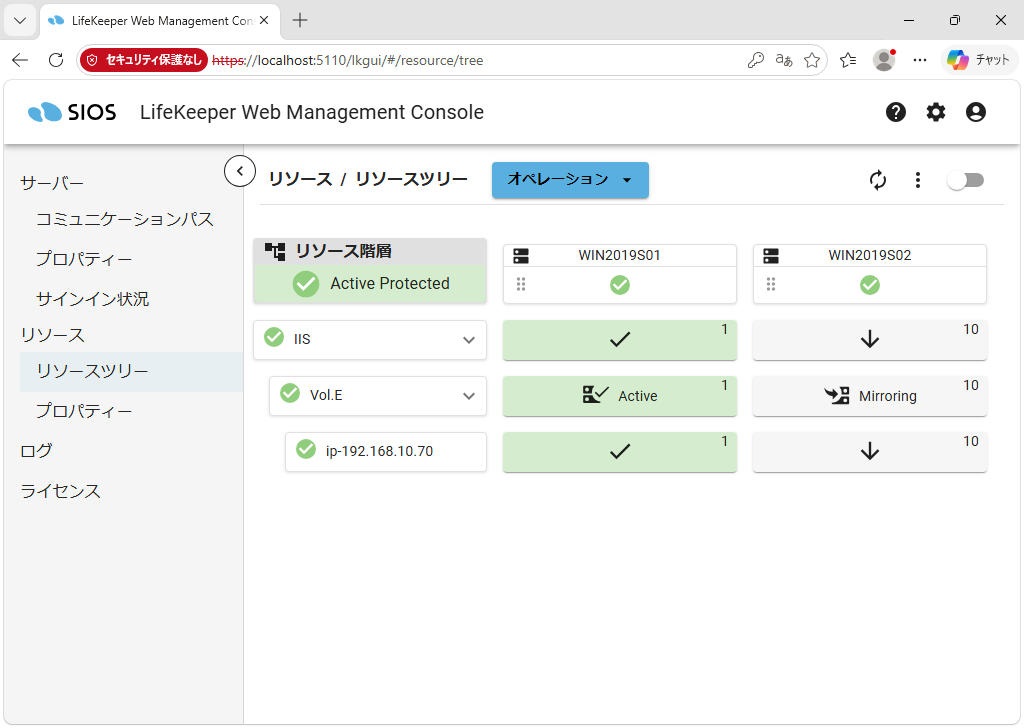
21.念のため、全リソースをスイッチオーバーします。
| C:\LK\Bin>lkcli resource restore --host=”WIN2019S02″ --tag=”IIS” LifeKeeper: Put resource “IIS” in-service at: Mon Aug 24 15:35:10 JST 2026 Process: perform_action.exe(5700) *INFO* (No. 348) LRACI 1 attempting remote remove of resource “ip-192.168.10.70” on machine “WIN2019S01” Process: perform_action.exe(5700) *INFO* (No. 351) Process: remove.ksh(2716) *INFO* (No. 9558) Remove IIS resource IIS End: Successful Process: IPAPP(4212) *INFO* (No. 6101) Remove IP Address 192.168.10.70 End: Successful LRACI 1 remote remove of resource “ip-192.168.10.70” on machine “WIN2019S01” successful Process: IPAPP(3600) *INFO* (No. 6001) Restore IP Address 192.168.10.70 End: Successful Process: perform_action.exe(5700) *INFO* (No. 348) LRACI 1 attempting remote remove of resource “Vol.E” on machine “WIN2019S01” Process: perform_action.exe(5700) *INFO* (No. 351) LRACI 1 remote remove of resource “Vol.E” on machine “WIN2019S01” successful Status = 0 volume E on WIN2019S02 marked for LifeKeeper protection Process: perform_action.exe(5700) *INFO* (No. 348) LRACI 1 attempting remote remove of resource “IIS” on machine “WIN2019S01” Process: perform_action.exe(5700) *INFO* (No. 351) LRACI 1 remote remove of resource “IIS” on machine “WIN2019S01” successful Restore of resource IIS was successful. LifeKeeper: Put “IIS” in-service successful at: Mon Aug 24 15:36:08 JST 2026 |
22.正常にスイッチオーバーできたことを確認します。
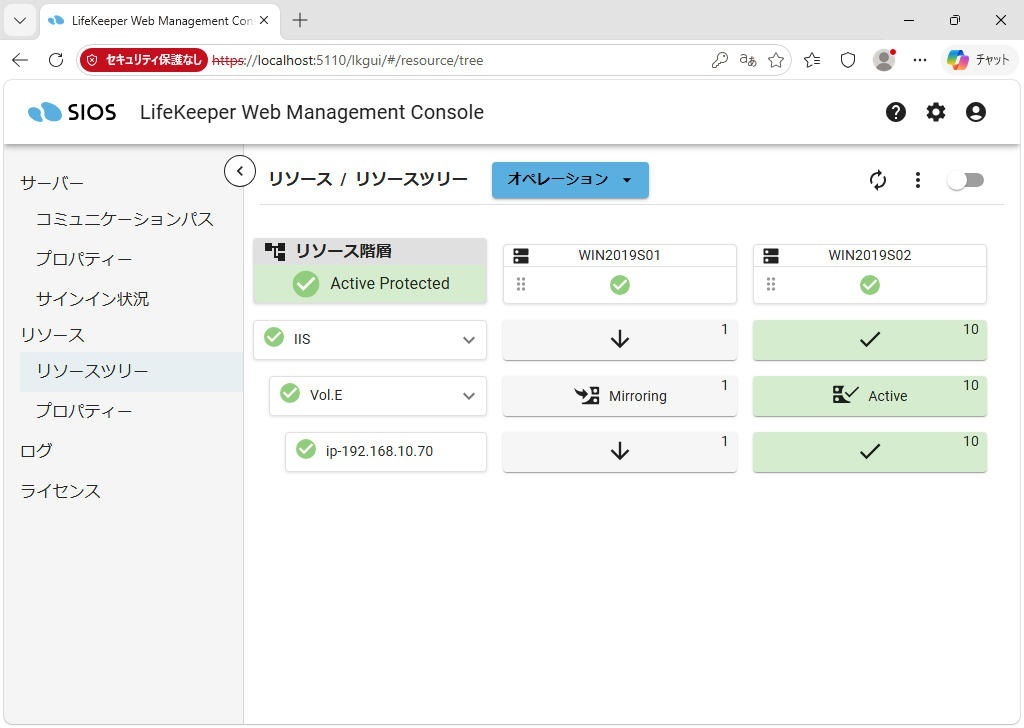
以上でLKCLIコマンドでのリソース構築が完了しました。
さいごに
今回は、待望のWindows版LKCLIについて紹介させていただきました。
オペレーションミス回避を目的としてコピー&ペースト用に手順書作成するもよし、構築の自動化を目的としてバッチ化してよし、LKCLIの実装でWindows環境構築の自由度が格段に上がりました。
本記事が少しでも参考になれば幸いです。
詳しい内容をお知りになりたいかたは、以下のバナーからSCSKLifekeeper公式サイトまで